
For years, I used a small Mac utility to control the hardware settings of my USB webcam.
The app gave me direct access to exposure, focus, white balance, zoom, brightness, contrast, and other settings unavailable in most video calling apps. Despite its extensive controls, the interface remained simple and focused. All it did was give me proper control over my camera.
Eventually, the app stopped being updated and no longer worked properly on modern Macs.
I started looking for a replacement. I expected to find several alternatives, but most of the webcam apps available for macOS worked very differently. Instead of changing the settings inside the camera, they captured the video and processed it with software filters.
That can be useful, but it wasn’t what I needed.
I wanted a simple webcam settings app for Mac that communicated directly with the camera hardware.
So I built CamTune.
What Is CamTune?
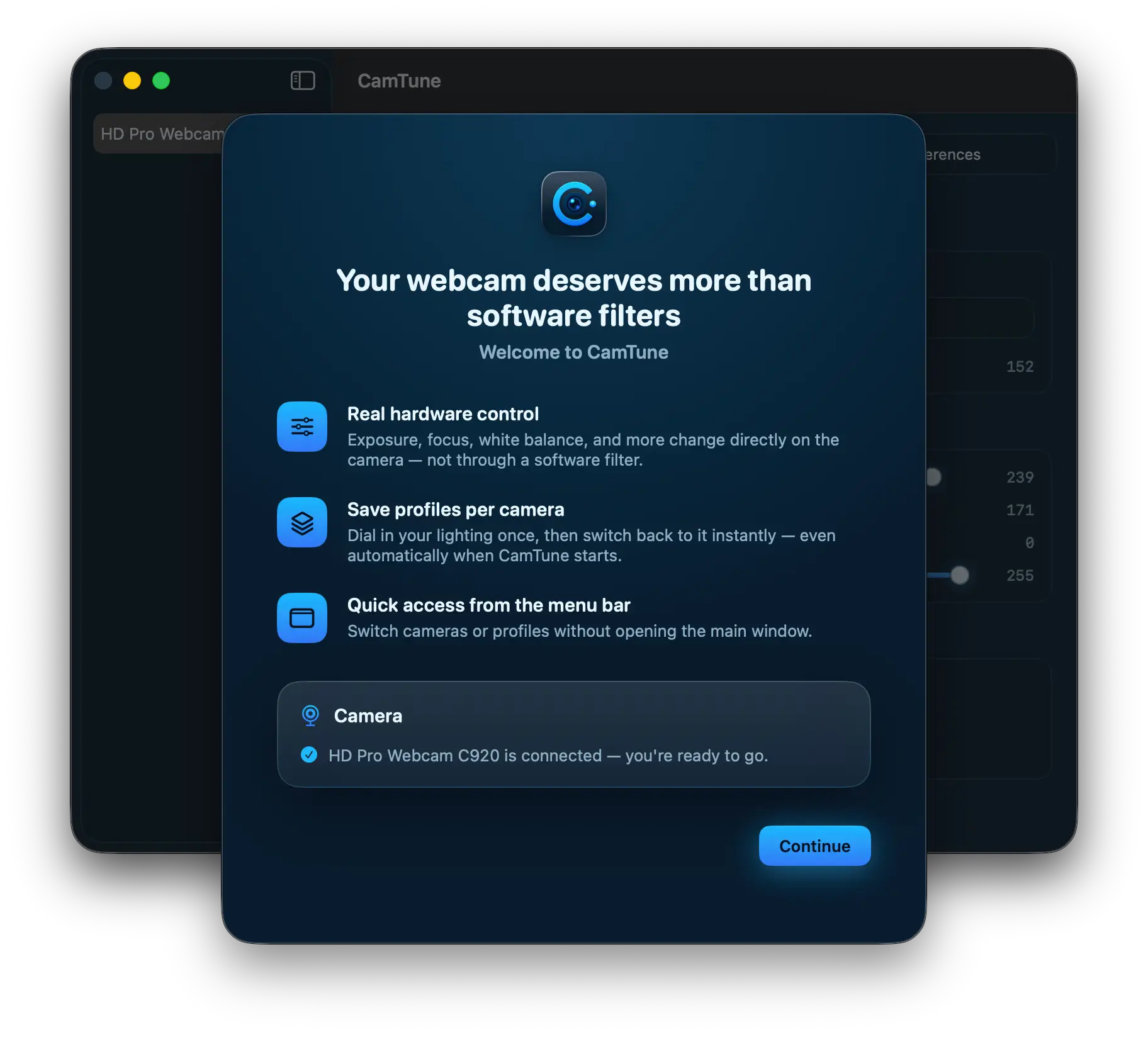
CamTune is a macOS utility for controlling the hardware settings exposed by compatible USB webcams.
Depending on what your camera supports, CamTune can give you access to controls such as:
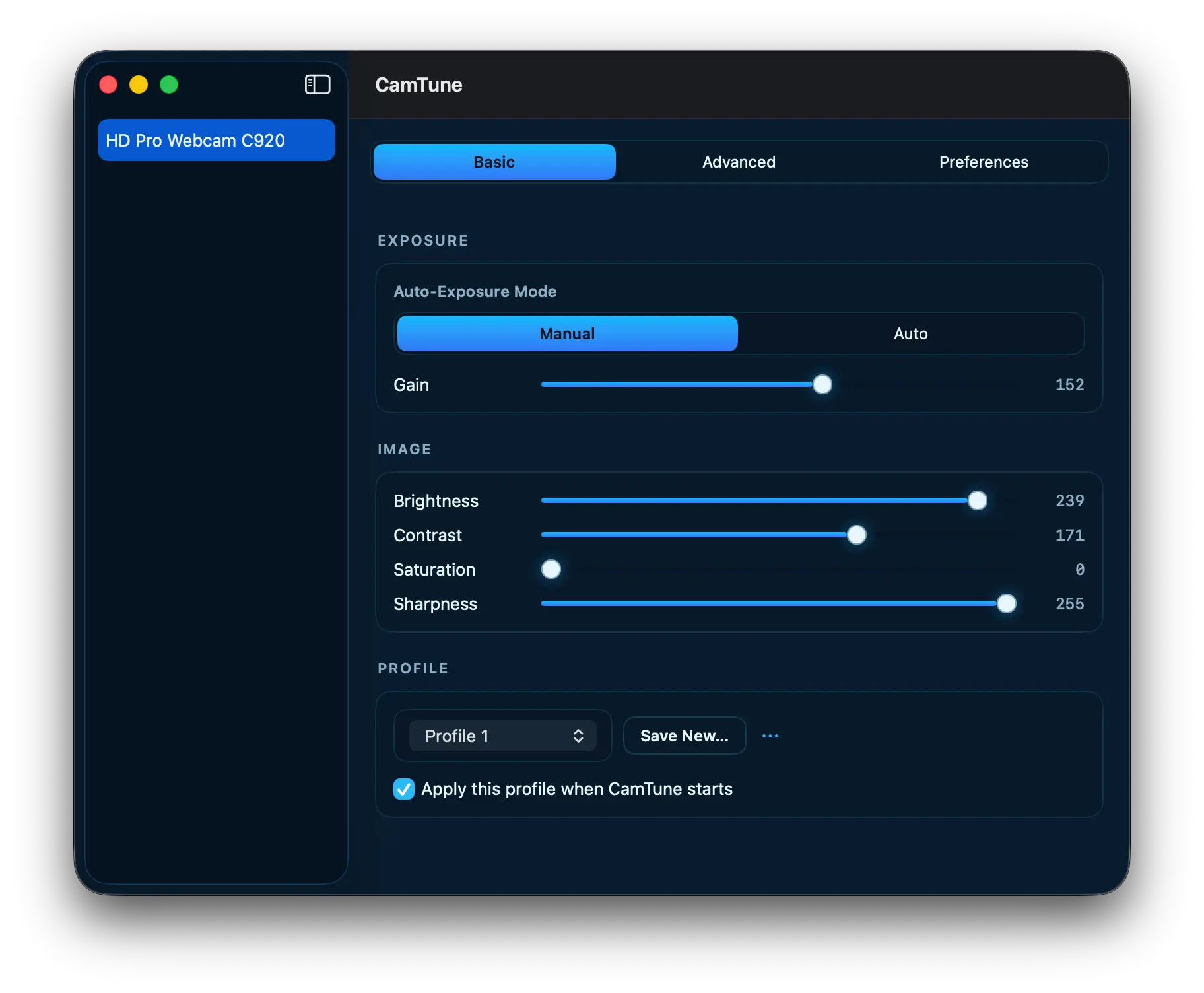
- Exposure
- Gain
- Brightness
- Contrast
- Saturation
- Sharpness
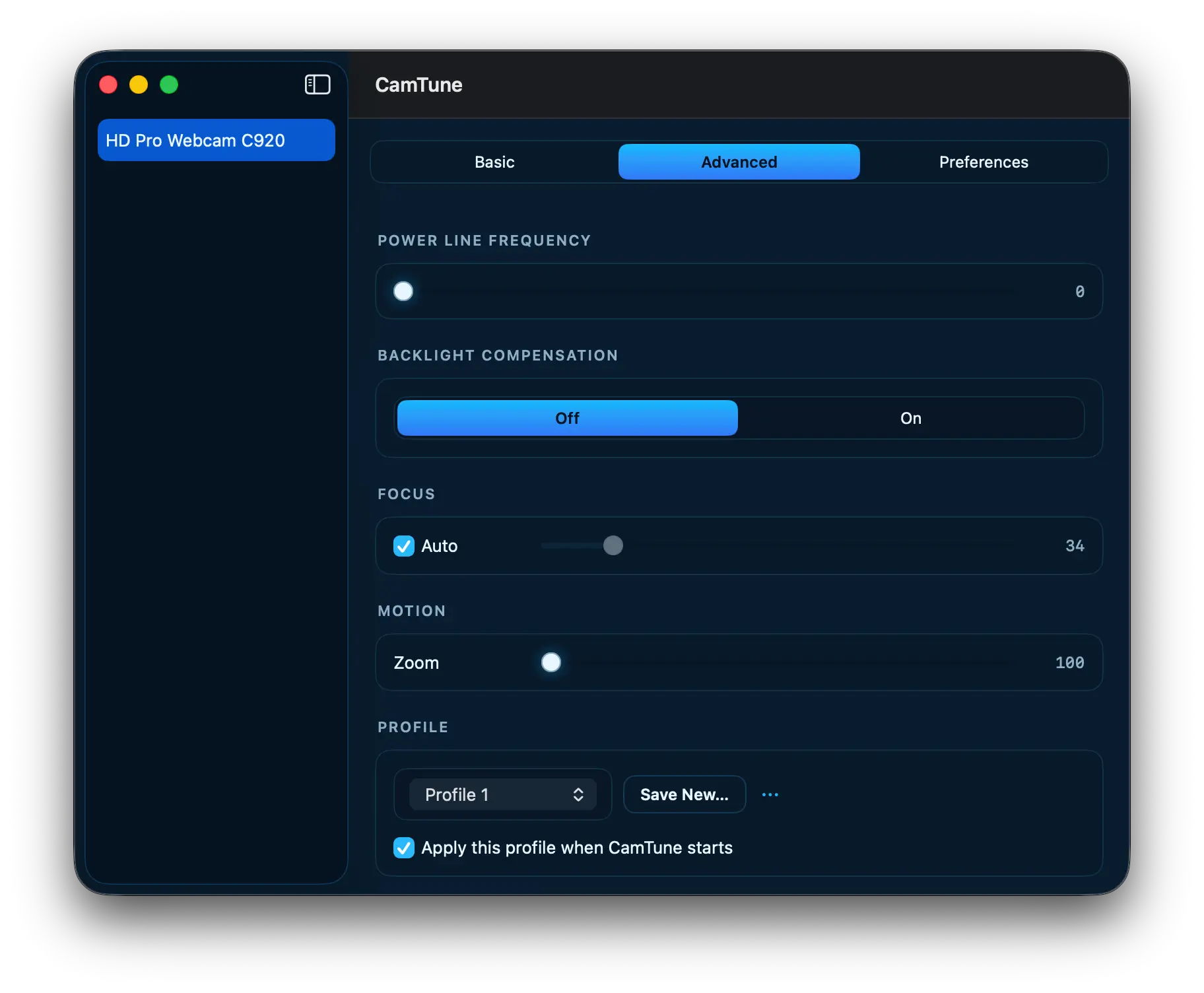
- Focus
- Zoom
- White balance
- Backlight compensation
- Power-line frequency
These settings are applied to the camera itself. CamTune does not create a virtual camera, capture your video, or place a software filter over the image.
You adjust a setting, and the camera responds.
Hardware Controls vs. Webcam Filters
Many modern webcam applications focus on software effects. They can blur the background, change colors, improve lighting, or alter the image after it has been captured.
CamTune serves a different purpose.
A software filter receives frames from the camera and then processes them. A hardware control changes how the camera captures those frames in the first place.
For example, changing hardware exposure affects how much light the camera sensor captures. Adjusting hardware focus moves the camera’s actual focusing mechanism. Changing white balance modifies how the camera interprets color before the image reaches Zoom, FaceTime, OBS, or another application.
This distinction matters when you want a clean and consistent camera image without adding another video-processing layer.
Why macOS Needs Better USB Webcam Controls
Most USB webcams expose far more settings than macOS normally makes available.
Video conferencing applications usually provide only a small number of controls, if any. Some attempt to manage exposure or white balance automatically, but they rarely allow precise manual adjustment.
This can lead to familiar problems:
- The image becomes too bright when you sit near a window.
- Autofocus keeps moving during a call.
- White balance changes when something enters the frame.
- The camera resets its settings after being disconnected.
- Another application overrides the adjustments you previously made.
The camera may already support the controls needed to solve these problems. The difficulty is accessing them.
CamTune provides a straightforward Mac interface for the settings reported by compatible UVC cameras.
Built for Modern Macs
I wanted CamTune to feel like a current macOS application rather than a restored version of an old utility.
It has a native interface, supports modern Macs, and keeps related controls organized into clear sections. You can select a connected camera, adjust its available settings, and immediately see the result in your preferred video application.
CamTune works alongside applications such as FaceTime, Zoom, Microsoft Teams, Google Meet, QuickTime Player, Photo Booth, and OBS. Because it changes the webcam’s hardware configuration, you do not need to select CamTune as a virtual camera.
There is no virtual camera.
Simply configure the physical webcam with CamTune and continue using it normally.
Save Webcam Settings as Profiles
Finding the right camera settings often takes time. The ideal setup for a bright office may not work in a dark room, and the settings used for a video call may differ from those used for streaming.
CamTune lets you save configurations as profiles so you can return to a preferred setup without adjusting every control again.
You can create profiles for different:
- Cameras
- Rooms
- Lighting conditions
- Video calling applications
- Recording or streaming setups
A profile can also be applied when CamTune starts, making it easier to keep your webcam configuration consistent.
Prevent Other Apps from Overriding Your Settings
Some applications automatically change camera settings while using the webcam. This can cause carefully chosen exposure, focus, or color settings to change unexpectedly.
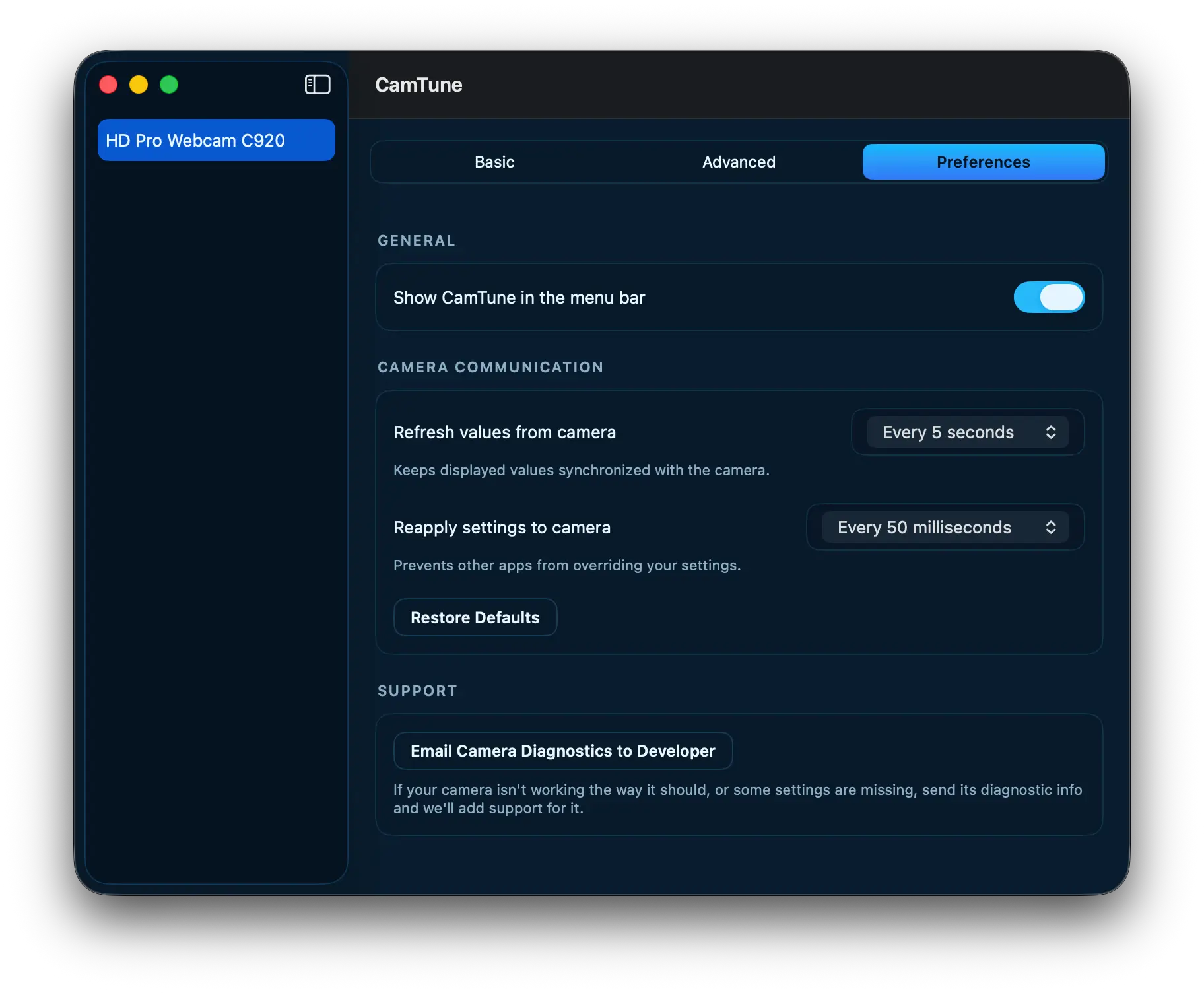
CamTune can periodically reapply your selected configuration to the camera. It can also refresh the displayed values so the interface remains synchronized with the current hardware state.
These options are configurable, allowing you to choose the behavior that works best for your setup.
Which Webcams Does CamTune Support?
CamTune is designed for UVC-compatible USB webcams.
UVC, or USB Video Class, is the standard used by many webcams from manufacturers such as Logitech, Elgato, Razer, Dell, Anker, and others.
The exact controls available in CamTune depend on the camera. One model may support manual focus and zoom, while another may expose only brightness, contrast, and white balance.
CamTune displays the controls reported by the connected camera. Unsupported settings are hidden or disabled rather than simulated with software filters.
Built-in Mac cameras may not provide the same UVC hardware controls, so CamTune is primarily intended for external USB webcams.
A Simple Webcam Settings App for Mac
CamTune began with a very ordinary problem: a useful app I depended on was no longer maintained, and I couldn’t find a modern replacement that worked the same way.
I didn’t want an effects studio or another virtual camera. I wanted direct access to the controls already built into my webcam.
That is what CamTune provides.
If you use an external USB webcam and want manual control over exposure, focus, white balance, zoom, brightness, contrast, and other hardware settings, CamTune is built for you.
Get CamTune
CamTune is available for macOS.
Connect your USB webcam, open CamTune, and take control of the settings your camera already supports.